Fortnite Performance Checks: Test Rendering Changes With a Baseline
A rendering option can help some devices without being a universal repair. Record the symptom and current configuration, use Epic’s supported guidance and compare one relevant change at a time.
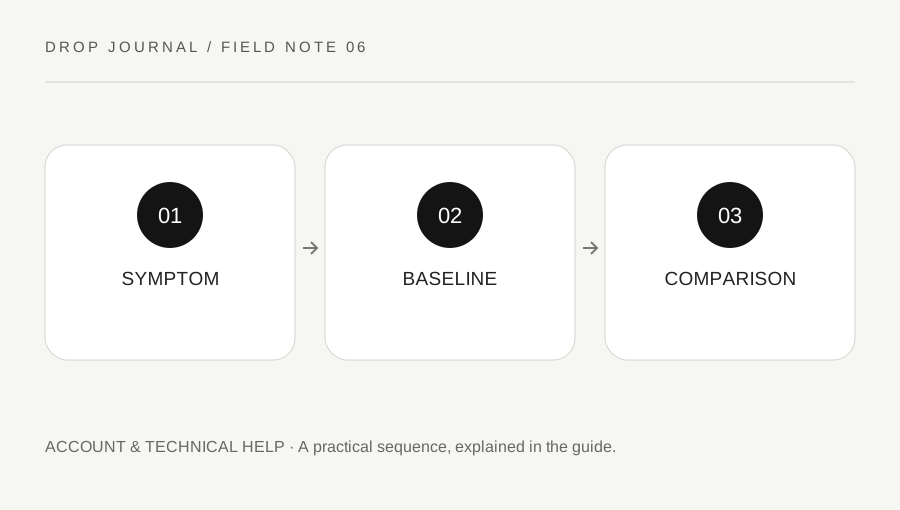
Original explanatory diagram. Examples illustrate a method or decision; they are not claims of personal testing.
Describe the problem before choosing a fix
Write whether the image stutters, frame rate stays low, an action feels delayed or the connection disconnects. Include device, platform and the context where it occurs. These symptoms can have different causes, so the label lag is not enough to select a rendering change.
Epic provides a supported Performance Mode for relevant Fortnite setups and describes it as potentially helping low frame rates. That possibility is not a guarantee for every device or every symptom. Use the current official page for availability and setup rather than an old launcher screenshot.
Record the existing rendering and display configuration so you can restore it. Do not begin by deleting system folders, applying a large registry script or installing an unknown optimizer. A useful diagnostic step should have a clear purpose and an understandable reversal.
Create a comparable test
Use a repeatable scene or suitable practice environment and observe the same task before and after the change. Keep resolution, background applications and other relevant settings stable where practical. A different crowded match with different effects introduces many variables.
Record both the visible experience and any supported performance reading available. A high peak number does not describe stability throughout the scene. Note recurring drops or input problems without claiming a precise improvement percentage from memory.
For a worked example, a player experiences low frame rate in a consistent practice scene. They save the baseline, follow Epic's current Performance Mode instructions and compare that scene again. If the display becomes clearer or steadier, they still check whether the new visual tradeoffs and controls remain comfortable.
Keep connection and rendering separate
A rendering change does not automatically repair a weak or interrupted network connection. If the image is smooth but other players move abruptly or a network error appears, investigate through the relevant official troubleshooting route rather than changing graphics indefinitely.
Likewise, a device-side stutter may persist even when the connection appears normal. Keep the observations separate and state what evidence supports the direction you are testing. Do not diagnose hardware failure from one difficult match or blame a service outage without checking official information.
If a supported update requires a restart or has a known preparation step, follow the current instructions. Avoid stacking several experimental fixes and then losing track of which change affected the result. Stable comparisons make both improvement and rejection of a proposed fix informative.
Retain only changes you understand
After a short controlled comparison, test a normal low-pressure session. Keep the original symptom in view. A win or loss is not a performance measurement, and a single clean match does not prove a permanent fix.
If the issue remains, prepare a concise support record: platform, symptom, timing, baseline and steps tried. Review any diagnostic material before sharing it to remove credentials or unrelated personal information. Use official support rather than handing remote access to an unknown helper.
Finish by restoring changes that did not help and documenting any retained setting. The goal is a more usable and understood setup, not a collection of optimization claims copied from several videos. A supported rendering option is one tool in that process, with limits determined by the actual device and problem.
A practical checklist
Choices are saved in this browser. Reset them here or clear this site’s browser storage.
Questions that come up
Does Performance Mode guarantee more FPS?
No. Epic describes a possible benefit for relevant setups. Results depend on the device and the actual bottleneck.
Can a graphics option fix every network problem?
No. Rendering and connection symptoms need separate observation and troubleshooting.
Should I install an unknown optimizer?
Use supported game, device and operating-system guidance. Unverified tools can create new technical or account risks without explaining the original issue.
References & scope
Background references checked on 18 October 2026. Worked examples and diagrams are original teaching material.